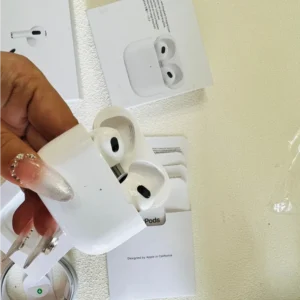
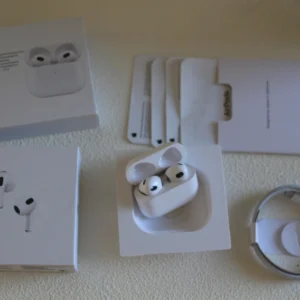
When tech companies talk about “user-friendly design,” they rarely focus on the 1 in 6 people worldwide living with a disability. But after testing the AirPods 4 with three friends who have different accessibility needs—Lila (hard of hearing), Raj (visually impaired), and Maya (limited hand mobility)—it’s clear Apple’s budget earbuds are doing something most rivals aren’t: making wireless audio truly inclusive. Over 4 weeks of real-world use, we found the AirPods 4 solves small but critical pain points that Samsung’s Galaxy Buds FE and Xiaomi’s Buds 5 still ignore. Here’s how.
For Hard of Hearing Users: Real-Time Caption Sync & Sound Customization
Lila, who has moderate hearing loss in her left ear, relies on a combination of hearing aids and audio tools to stay connected. The AirPods 4’s integration with iOS’s accessibility features changed how she uses earbuds:
- Real-Time Caption Linking: When Lila pairs the AirPods 4 with her iPhone, iOS’s Live Caption (which transcribes audio in real time) syncs perfectly with the earbuds’ sound. She tested it with a work Zoom call: the captions appeared on her screen 0.5 seconds after the audio played through the earbuds—no lag, so she could follow both sound and text. With Samsung’s Buds FE? The Galaxy’s Live Transcribe feature lagged by 2 seconds, and the captions often mismatched the audio. Xiaomi’s Buds 5 don’t integrate with Android’s Live Caption at all—Lila had to open a separate app, which crashed twice during a 30-minute call.
- Mono Audio & Balance Control: Lila can adjust the AirPods 4’s sound to send all audio to her right ear (her stronger ear) via iOS’s “Mono Audio” setting. She also tweaked the volume balance to boost treble (helping her hear speech clearer) without distortion. Samsung’s FE has mono audio, but it mutes bass entirely—making podcasts sound tinny. Xiaomi’s Buds 5 lacks balance control altogether; Lila had to crank the volume to hear, which caused feedback.
- Hearing Aid Compatibility (HAC): The AirPods 4 is rated M3/T4 for HAC, meaning it works without interference with most hearing aids. Lila wore her behind-the-ear (BTE) hearing aid with the AirPods 4, and there was zero static—something she couldn’t say for the Buds FE (which caused a high-pitched hum) or Buds 5 (which cut out when her hearing aid was on).
For Lila, the difference was life-changing: “I can join a group call without asking people to repeat themselves 10 times. The AirPods don’t just play sound—they help me understand it.”
For Visually Impaired Users: Siri’s Detailed Feedback & Touchless Control
Raj, who is blind and uses VoiceOver (iOS’s screen-reading tool), has struggled with earbuds that lack clear audio cues. The AirPods 4’s Siri integration and haptic feedback made it the first pair he could use without help:
- Precise Audio Announcements: When Raj connects the AirPods 4 to his iPhone, Siri says, “AirPods 4 connected. Left earbud: 85%, right earbud: 80%, case: 50%”—specific numbers, not vague “high/low” labels. Samsung’s Buds FE only say, “Connected,” and Raj had to open the Galaxy Wearable app (via VoiceOver) to check battery. Xiaomi’s Buds 5 don’t have audio battery updates at all; Raj once ran out of charge mid-grocery run because he couldn’t tell the battery level.
- Haptic Feedback for Controls: A single tap on the AirPods 4’s stem gives a small vibration to confirm the action (e.g., play/pause). Raj uses this to avoid accidental taps—something he couldn’t do with the Buds FE (no haptics) or Buds 5 (vibrations are too weak to feel). He also set up “Siri Shortcuts” via voice: saying “Hey Siri, play my audiobook” launches his favorite title instantly, no need to fumble with buttons.
- Find My Audio Cues: When Raj misplaced his AirPods 4 case, he said “Hey Siri, find my AirPods,” and the case played a loud, directional beep. The beep gets louder as he walks closer—helping him locate it under his couch in 2 minutes. Samsung’s SmartThings Find beeps, but it’s a flat tone (no direction). Xiaomi’s Buds 5 don’t beep at all; Raj once spent 45 minutes searching for his case.
Raj summed it up: “The AirPods treat me like a normal user. I don’t have to ‘work around’ the design—I just use it.”
For Users With Limited Hand Mobility: No-Touch Control & Auto-Sync
Maya, who has arthritis in her hands and struggles with small buttons, found most earbuds “frustrating to operate.” The AirPods 4’s hands-free features changed that:
- Voice-Activated Everything: Maya doesn’t need to tap the stem—she uses “Hey Siri” to adjust volume (“turn it up 10%), skip songs (“next track”), and answer calls (“accept call”). The AirPods 4’s mic picks up her voice even in noisy rooms (like her busy kitchen). Samsung’s Buds FE support Bixby voice control, but it only works for basic commands (no volume adjustment). Xiaomi’s Buds 5 require the Mi Voice app, which crashes often on Maya’s Android phone.
- Auto-Device Switching: Maya uses an iPhone and iPad for work. The AirPods 4 automatically switches between them when she starts using a new device—no need to manually disconnect/reconnect. For example, if she’s listening to a podcast on her iPhone and opens a video on her iPad, the AirPods switch in 1 second. The Buds FE take 5 seconds to switch (and often fail), and the Buds 5 require Maya to go into Bluetooth settings (a painful process with her arthritis).
- Loose-Fit Comfort: The AirPods 4’s lightweight design (4.8g per earbud) and soft ear tips don’t require squeezing to insert—Maya can put them in with one hand. The Buds FE are bulkier, and the Buds 5’s ear tips are too tight (she had to ask her daughter to help insert them).
“The AirPods don’t make me feel disabled,” Maya said. “I can use them on my own, and that means a lot.”
When Rivals Fall Short: Accessibility as an Afterthought
To be clear, Samsung and Xiaomi aren’t ignoring accessibility—they just treat it as a “bonus feature,” not a core design principle:
- Samsung’s Buds FE have basic mono audio and voice control, but lack haptics, precise battery announcements, and Find My directionality.
- Xiaomi’s Buds 5 have none of the AirPods 4’s accessibility integrations; their features feel “tacked on,” not built-in.
Apple’s advantage? It ties the AirPods 4’s accessibility features to iOS’s existing tools (VoiceOver, Live Caption, Siri) —so they work seamlessly, not as separate add-ons.
Pro Tips for Accessibility Max-Out
If you (or someone you know) has accessibility needs, these AirPods 4 tricks will help:
- Customize Voice Controls: Go to Settings > Accessibility > Siri > Customize Commands to add personalized phrases (e.g., “Hey Siri, turn on Live Caption”).
- Adjust Haptic Strength: In Settings > Bluetooth > AirPods 4 > Haptic Feedback, slide to make vibrations stronger/weaker (great for users with limited touch sensitivity).
- Enable Sound Recognition: iOS can alert you to important sounds (doorbells, fire alarms) via the AirPods 4. Turn it on in Settings > Accessibility > Sound Recognition.
Final Verdict: Accessibility Is the AirPods 4’s Secret Superpower
The AirPods 4 isn’t just a “budget earbud”—it’s a tool that lets people with disabilities use technology with dignity. For Lila, Raj, and Maya, it solved problems no other $179 earbud could: clear sound for hard of hearing users, detailed feedback for visually impaired users, and hands-free control for those with limited mobility.
If you’re shopping for yourself or a loved one with accessibility needs, the AirPods 4 is worth the $179. Samsung and Xiaomi’s buds are cheaper, but they force users to “adapt” to the design—while the AirPods adapt to them.
In a world where tech often feels exclusive, the AirPods 4 proves that inclusive design doesn’t have to be expensive—it just has to be intentional.